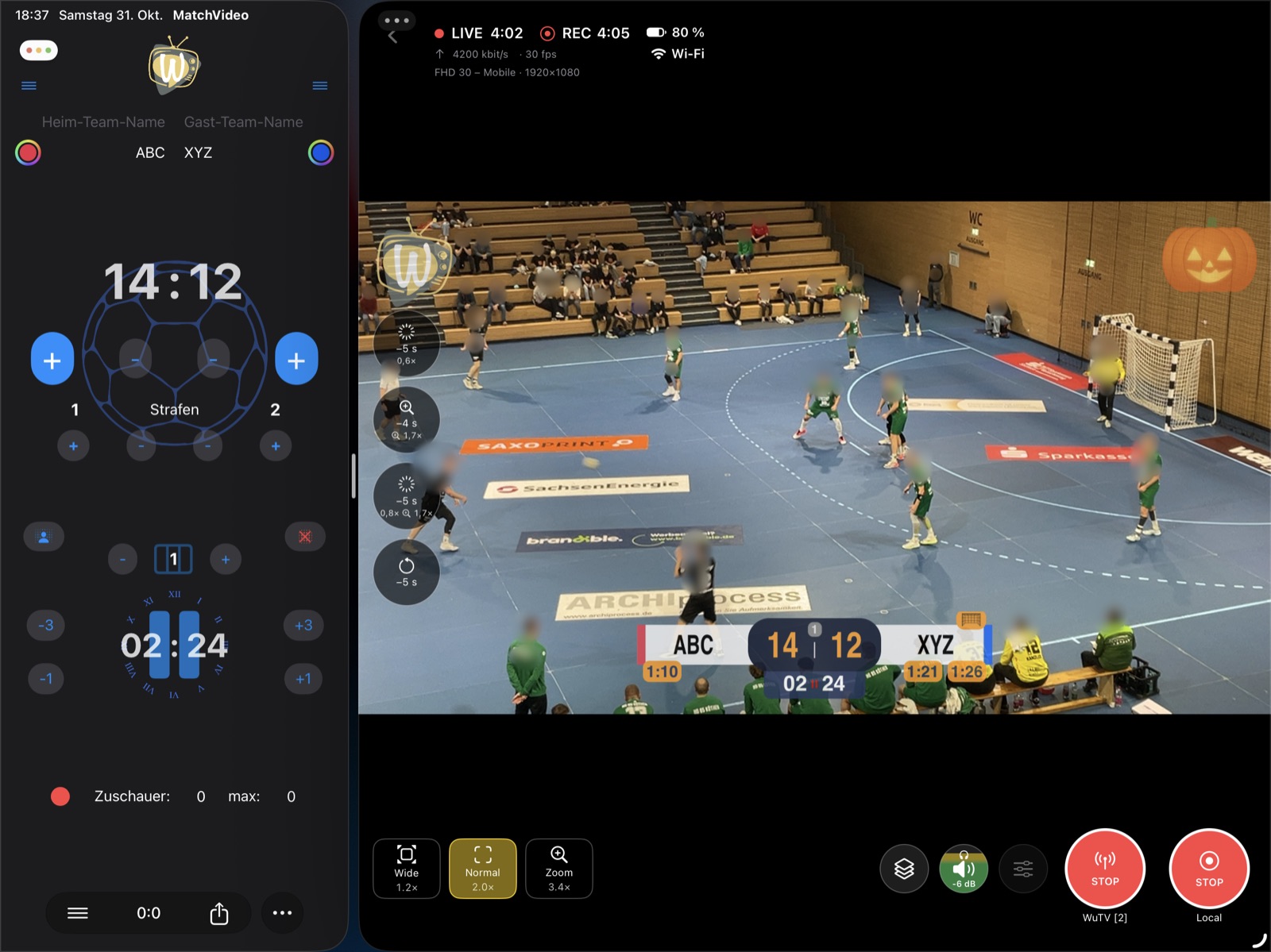
Video view
The video view shows the camera picture as it is streamed and recorded, including the overlays.
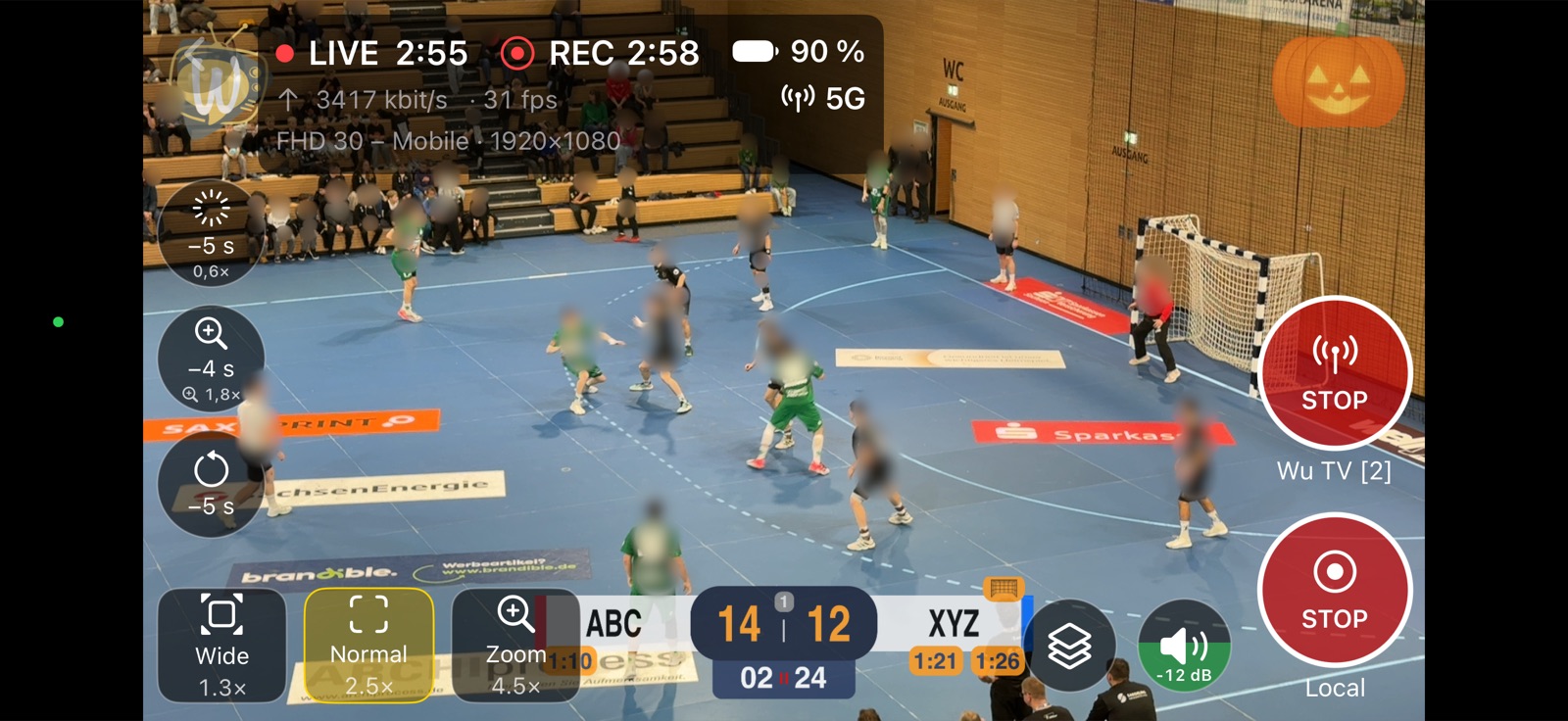
Controls
- STREAM starts and stops the stream to the selected destination. While streaming, the button shows STOP and the status line shows LIVE with the running time.
- REC starts and stops a recording. The label below shows where it is saved: Local or Local + Photos.
- Zoom switches the close-up preset on and off; Wide and Normal switch between the overview and the view used to follow the game. Wide is always on the outer side: with the controls on the left, the order is mirrored. A long press on a zoom button shows a slider for adjusting the zoom during the game; it hides after 10 seconds without use, and the zoom stays. A tap on a zoom button while the slider is shown saves the current zoom in that preset.
- Up to three round replay buttons at the side of the video (see Replay). On the iPad, up to four.
- Menus for the destination, the video and audio presets, the microphone level (0 to −36 dB, or muted) and the manual overlays. The presets are fixed while streaming or recording; on the iPhone their menu is then hidden, leaving more of the picture free. The microphone button fills from the bottom with the current level – green, yellow from −18 dB, red from −6 dB – as the sound goes into the stream and the recording. The microphone menu also shows which microphone records and, with several connected (e.g. the device’s and a USB microphone), lets you choose one; with a Bluetooth headset or no microphone, the button shows an orange warning.
Streaming and recording are independent: each can be started and stopped at any time without affecting the other.
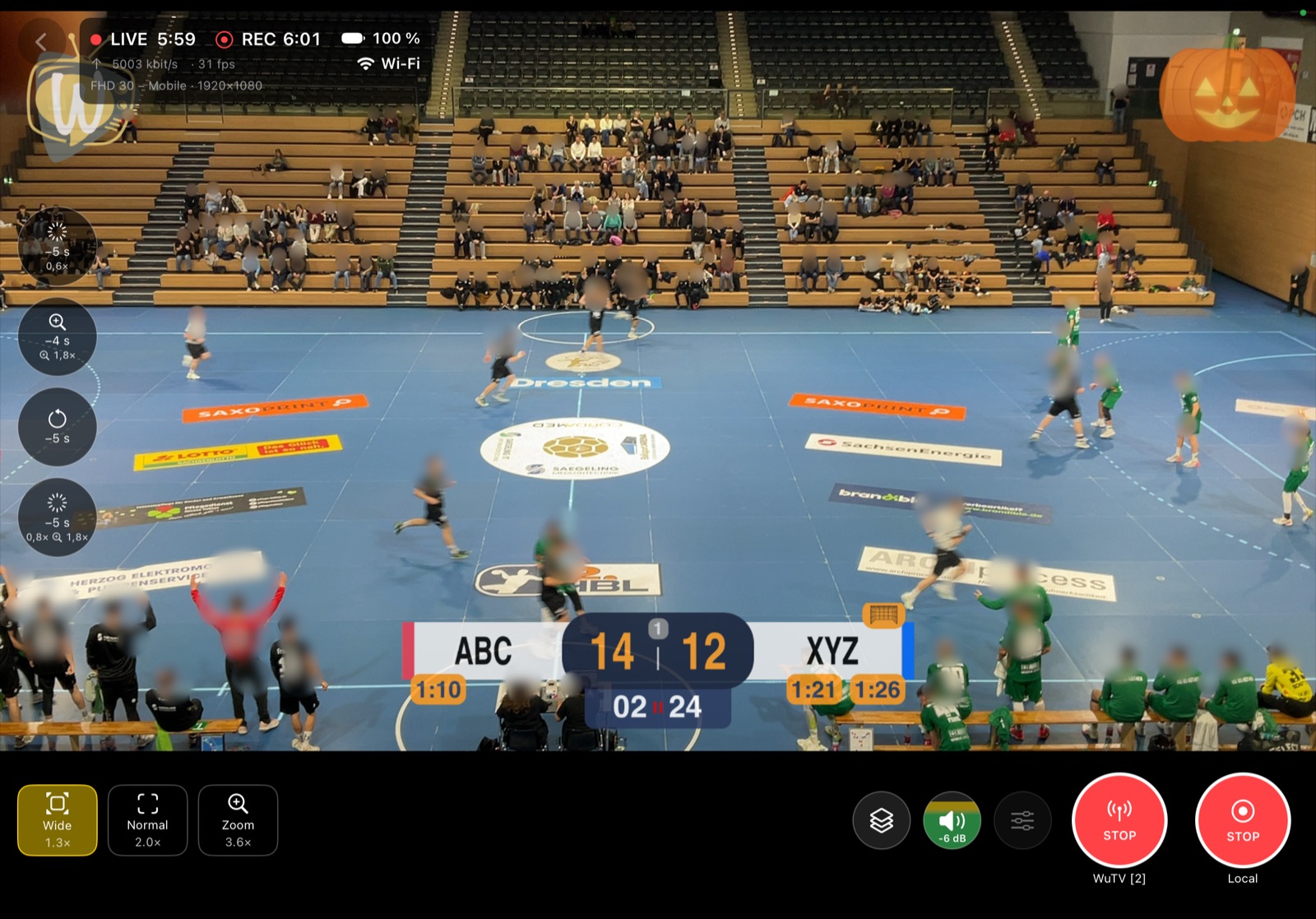
Replay
The round replay buttons at the side of the video play a moment of the last seconds (up to 20 s) again, slowed down or zoomed in as set in the preset; see Replay.
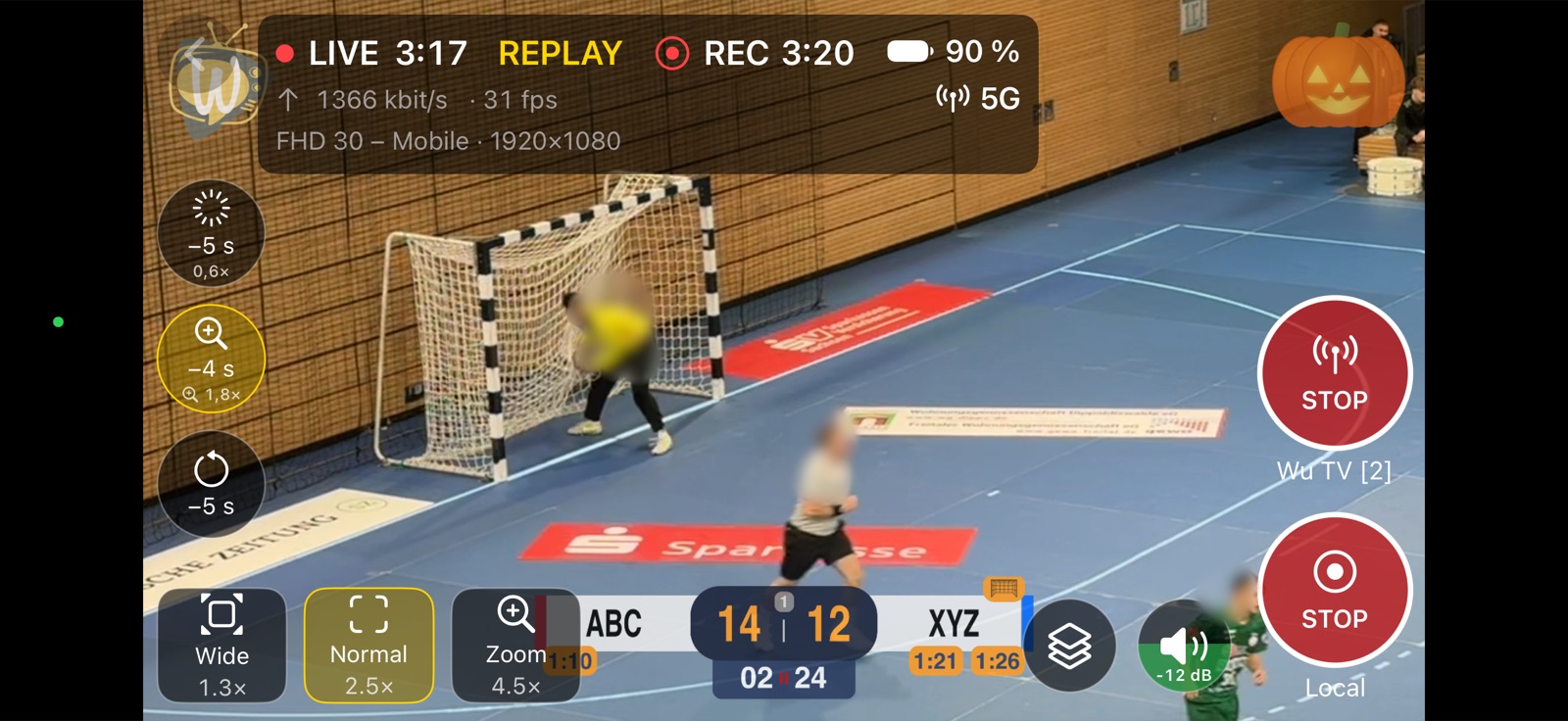
Status
The status row shows the stream and recording state with running time, the upload rate and frame rate, the battery, the network (Wi-Fi, mobile, cable, Low Data Mode) and a heat warning (Warm, Hot).
When the device reports Hot, iOS may reduce the performance. Keep the device out of direct sunlight, remove the case and consider a lower resolution or frame rate.
Layout
On the iPhone, the controls lie translucent on the video. On the iPad and in narrow windows (e.g. Split View) they are shown in a bar below the video. In the settings under Camera Controls you can choose the position and the side.