
Replay
A replay plays a moment of the last seconds (up to 20 s) again – in the stream and the recording. At the camera, the replay window shows it while the large picture keeps the game in view. The overlays stay on top and keep showing the current state, e.g. the live score, and the original sound continues.
Replay buttons
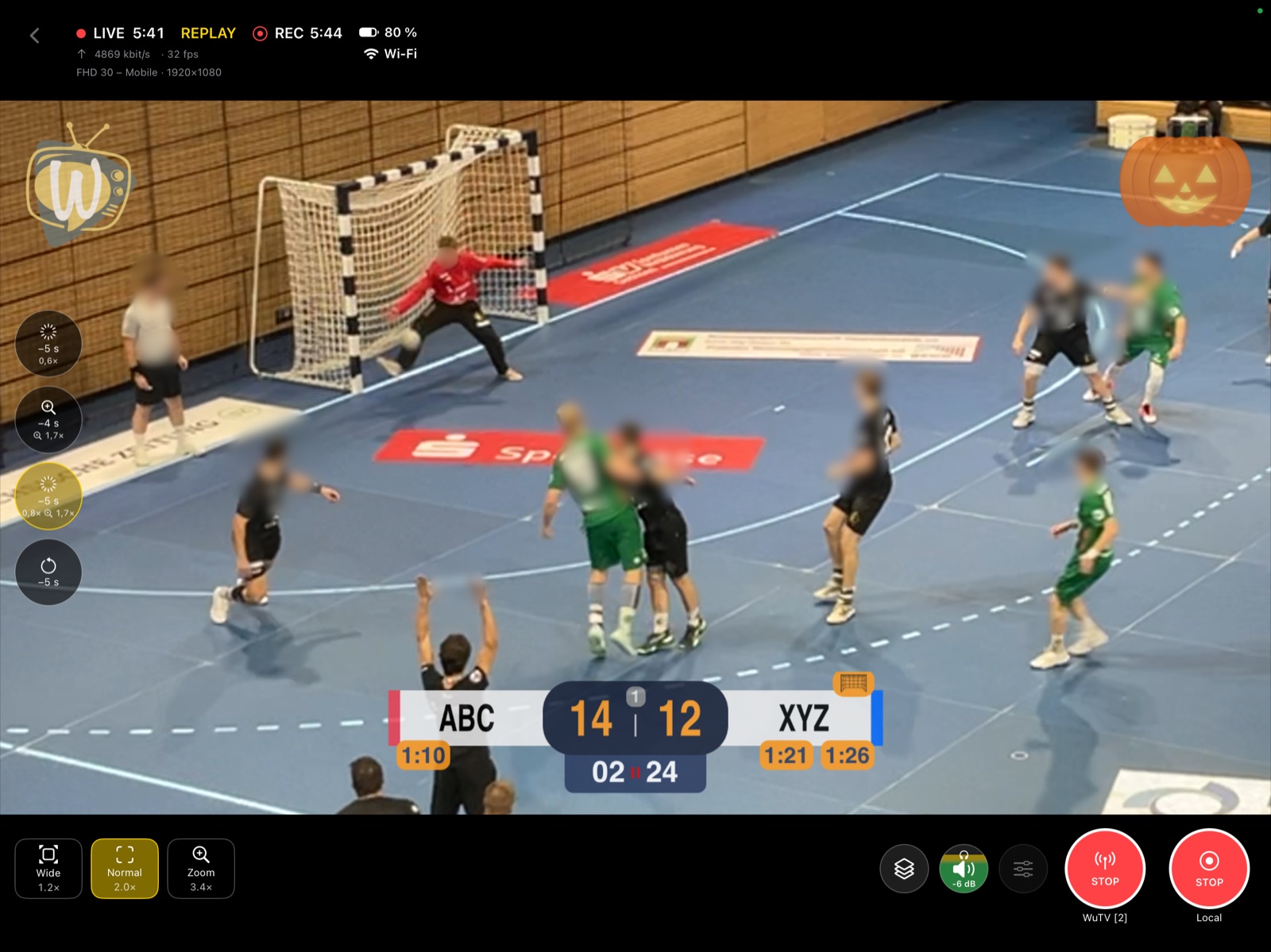
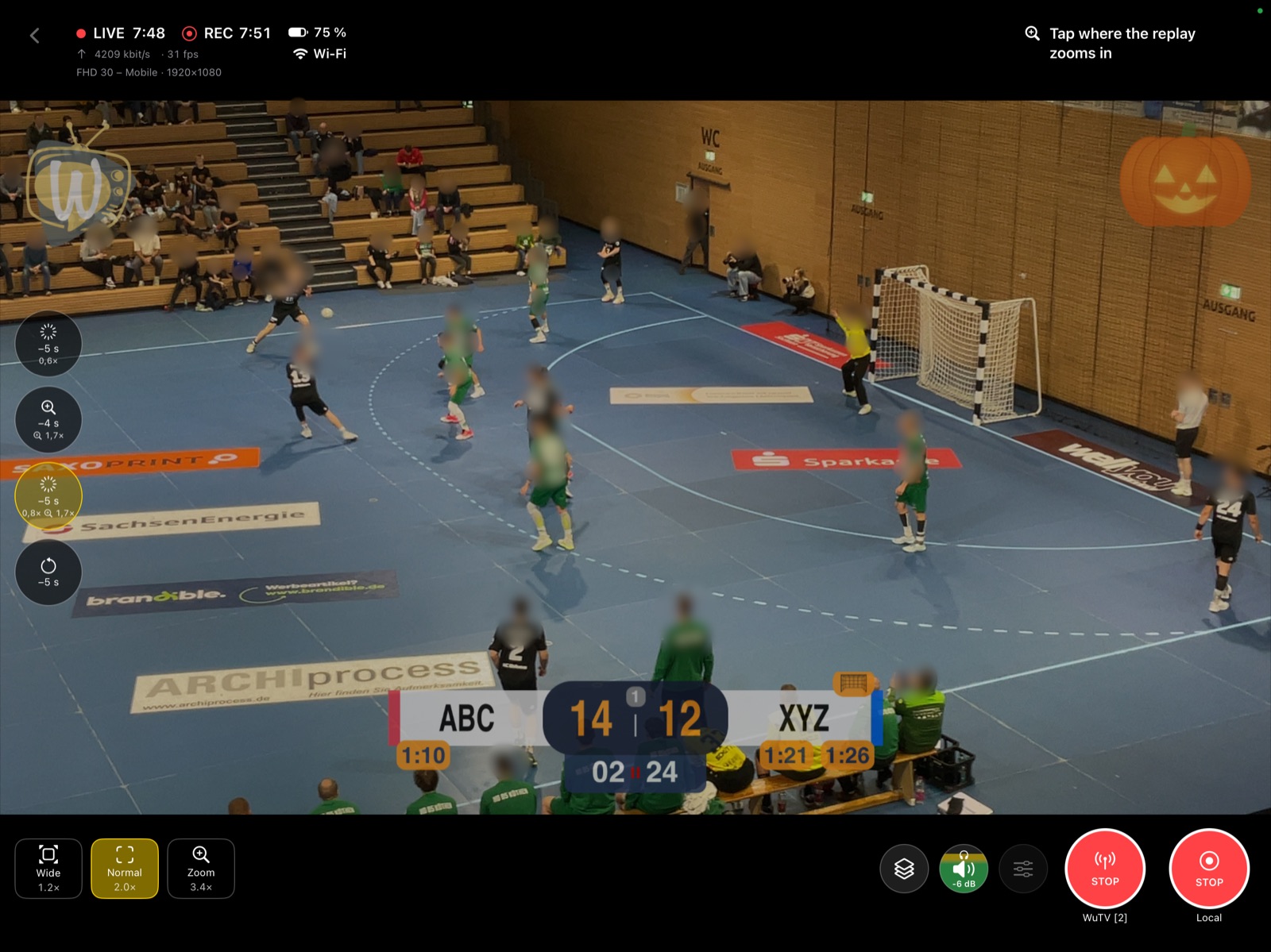
The round buttons at the side of the video start a replay with one tap. Each button shows its preset: how far back it starts (e.g. −5 s), the slow motion (e.g. 0.6×) and the zoom.
- A tap first opens the replay window with a slider of the last 20 seconds at its bottom edge, the section of the preset highlighted. One handle moves the start (the length stays), the other changes the length (2 to 10 s); the window shows the moment at the handle while it is dragged. Letting go starts the replay; left untouched, it starts after one second. A tap on the picture starts it at once.
- While a replay runs, its button is highlighted and the replay window shows it, marked REPLAY, while the large picture keeps the game in view. Only the person at the camera sees this – stream and recording show the replay. Tapping the button again returns to the live picture early.
- A long press on a replay button opens the settings of its preset next to the buttons, also during the game; changes apply right away. A tap on a replay button or 10 seconds without a touch close them.
- With a zoom preset, the replay window waits for the zoom center: a tap on the spot in its picture that should be enlarged starts the replay. Without a tap, the request closes by itself after the length of the replay.
- The moment is taken when the button is pressed, so choosing the zoom center does not shift it.
- Right after the camera starts, the buffer does not reach back far enough yet; the app then says so.
Replay presets
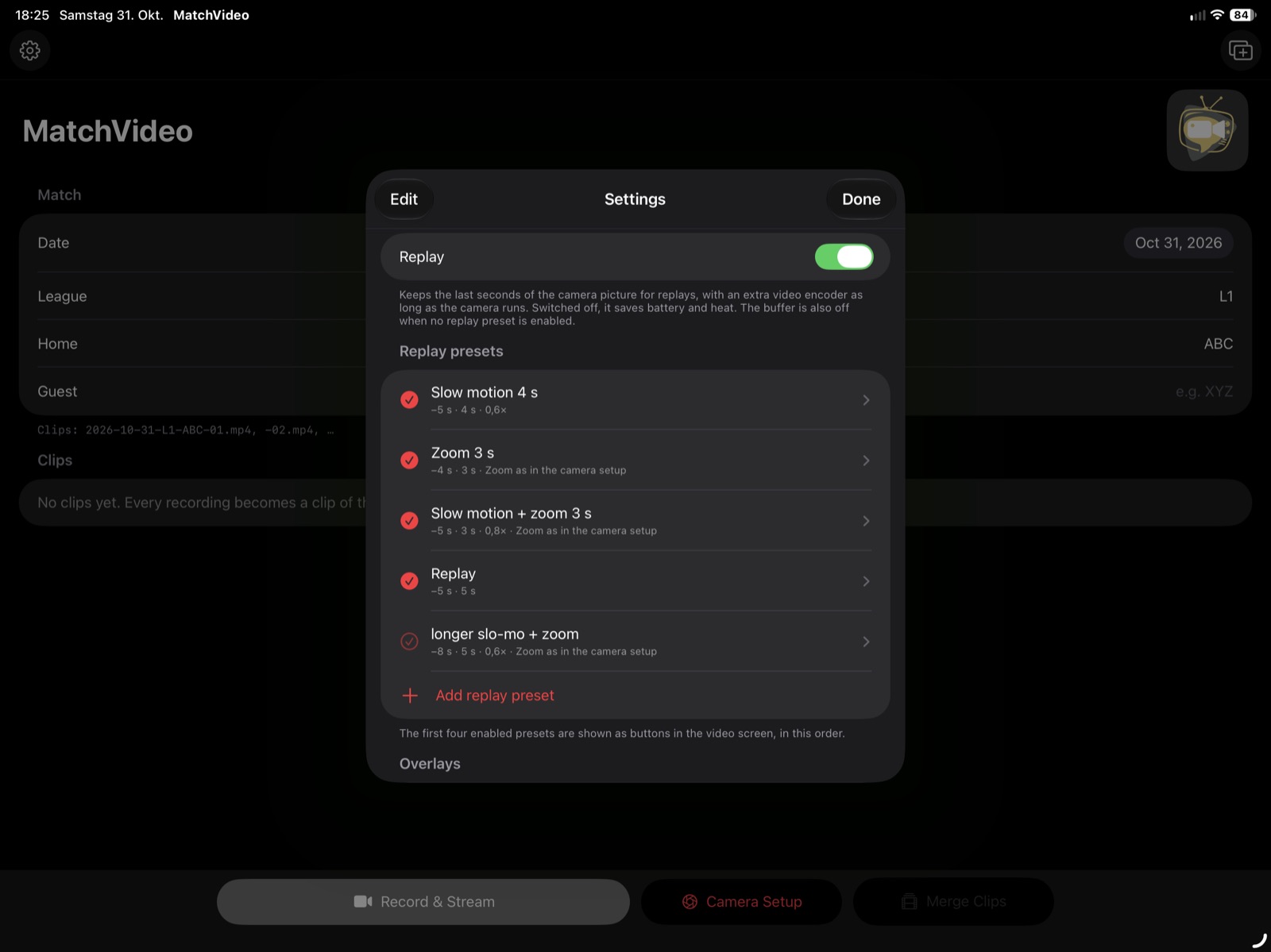
The presets are set up in the settings under Replay presets:
- Start – how far before the button press the replay begins: 1 to 20 s. The buffer always keeps the last 20 s.
- Duration – how long a section of the game it shows: 2 to 10 s, never longer than the start (the section has to lie before the button press).
- Speed – real time, 0.8× or 0.6× (slow motion takes correspondingly longer).
- Zoom – off or up to 4×. With Zoom as in the camera setup, the factor is the ratio of Zoom to Normal in the camera setup (e.g. 4× to 2× gives 2×), so the replay shows about as much of the field as the close-up.
- Enabled – the first three enabled presets are shown as buttons, in the order of the list. On the iPad, up to four. In the list, the check mark switches a preset on or off directly; a filled check mark marks the presets that have a button.
- Symbol – Automatic (from the effect) or one of 18 symbols, e.g. for the situation (shot, goal, fast break), the effect (slow motion, zoom, 5 s back) or simply 1 to 3. A chosen symbol is shown large on the button, with only the start below, so the right preset is found at a glance.
If the camera was on Zoom during the replayed moment, the replay is not zoomed again – also when the preset has a zoom. The slow motion stays.
Battery and heat
To keep the last seconds ready, the app encodes the camera picture a second time as long as the camera runs. If you don’t need replays, switch Replay off in the settings: that saves battery and keeps the device cooler. Without enabled presets the buffer is off as well.