Getting started
Requirements
- MatchVideo from the App Store, free to download.
- iPhone or iPad with iOS / iPadOS 26 or later.
- For streaming: a streaming server or platform that accepts RTMP or RTMPS, and its stream key.
- A tripod or holder is recommended; the device gets warm while streaming and recording.
The first session
- Open MatchVideo. The app starts with the session view.
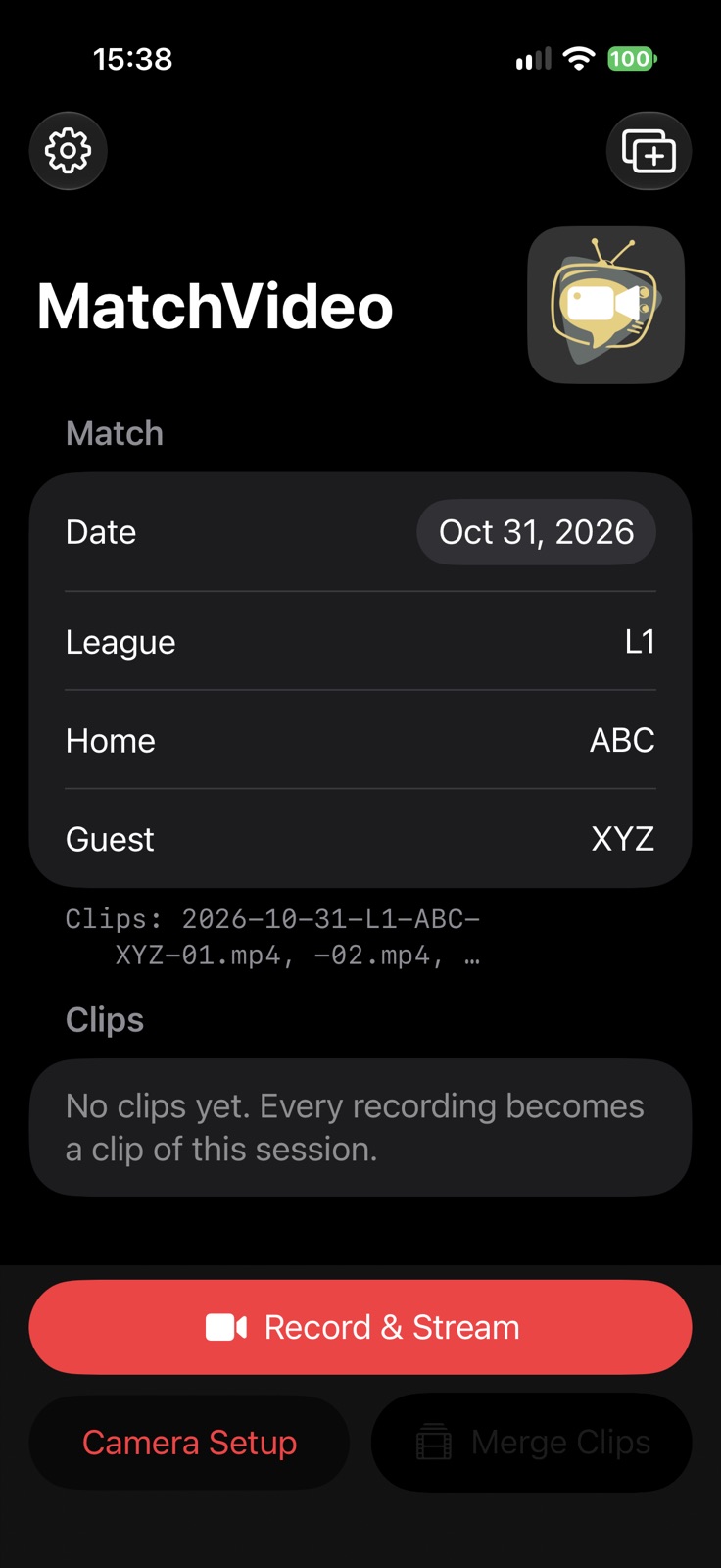
- Enter the date, the league and the two teams as short codes, e.g. league L1, home ABC, guest XYZ. The file names of the clips are derived from them, e.g.
2026-10-24-A-L1-ABC-XYZ-01.mp4. How the names are built is set in the settings under File names, as a pattern with placeholders such as{date}-{league}-{home}-{guest}; each placeholder becomes a field here. - Open the Camera Setup once per venue and set the zoom presets (see Camera setup).
- In the Settings, add a destination for your stream (see Streaming) – or only record, without streaming.
- Open the video view with Record & Stream and start the stream (STREAM) and/or the recording (REC).
MatchVideo asks for access to the camera and the microphone on the first start. Without it, there is no picture. You can allow it later in the iOS settings under MatchVideo.
After the match
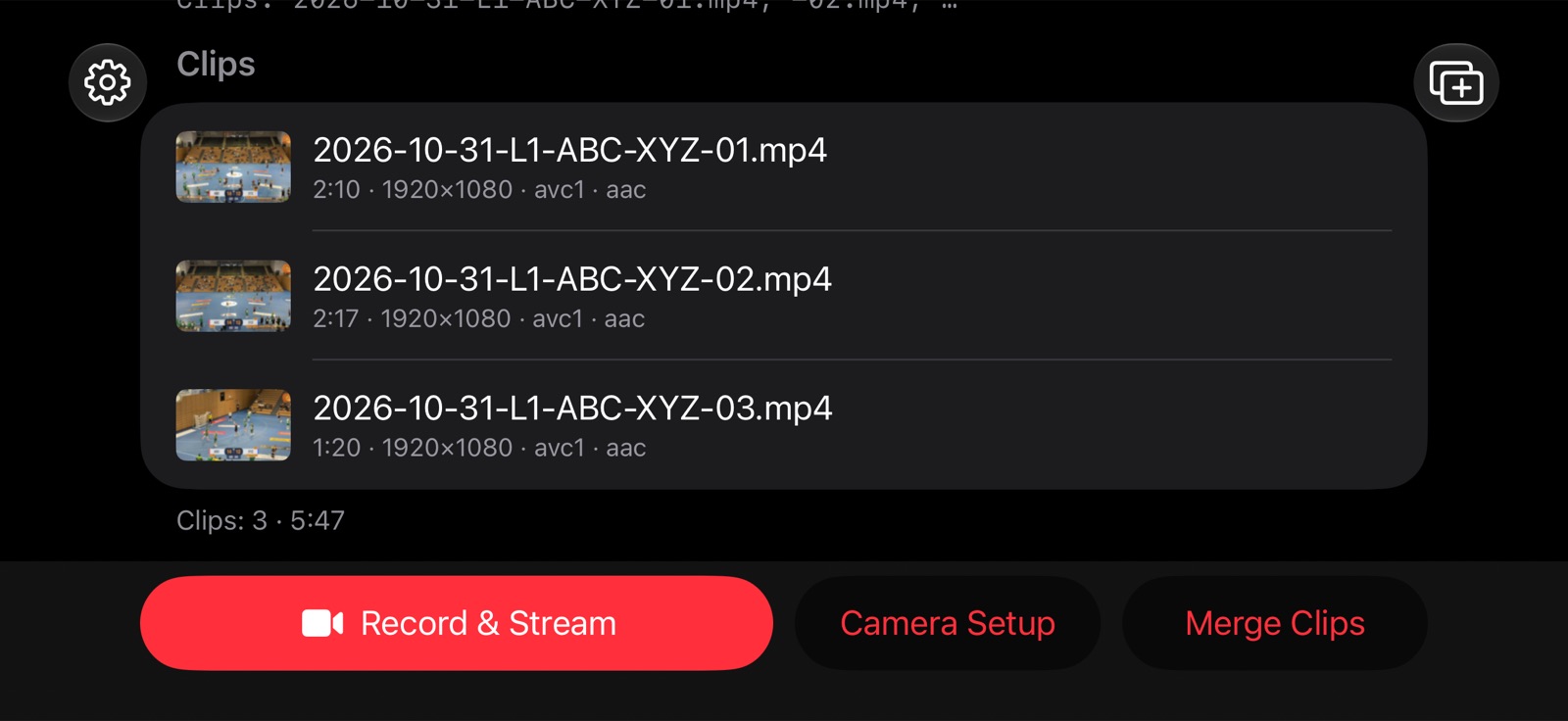
- Every recording appears as a clip in the session view; clips can be played, shared, sorted and deleted.
- Merge Clips joins them into one video (see Merge and upload).
- New Session deletes the clips and starts over; league, teams and camera setup are kept.
Language
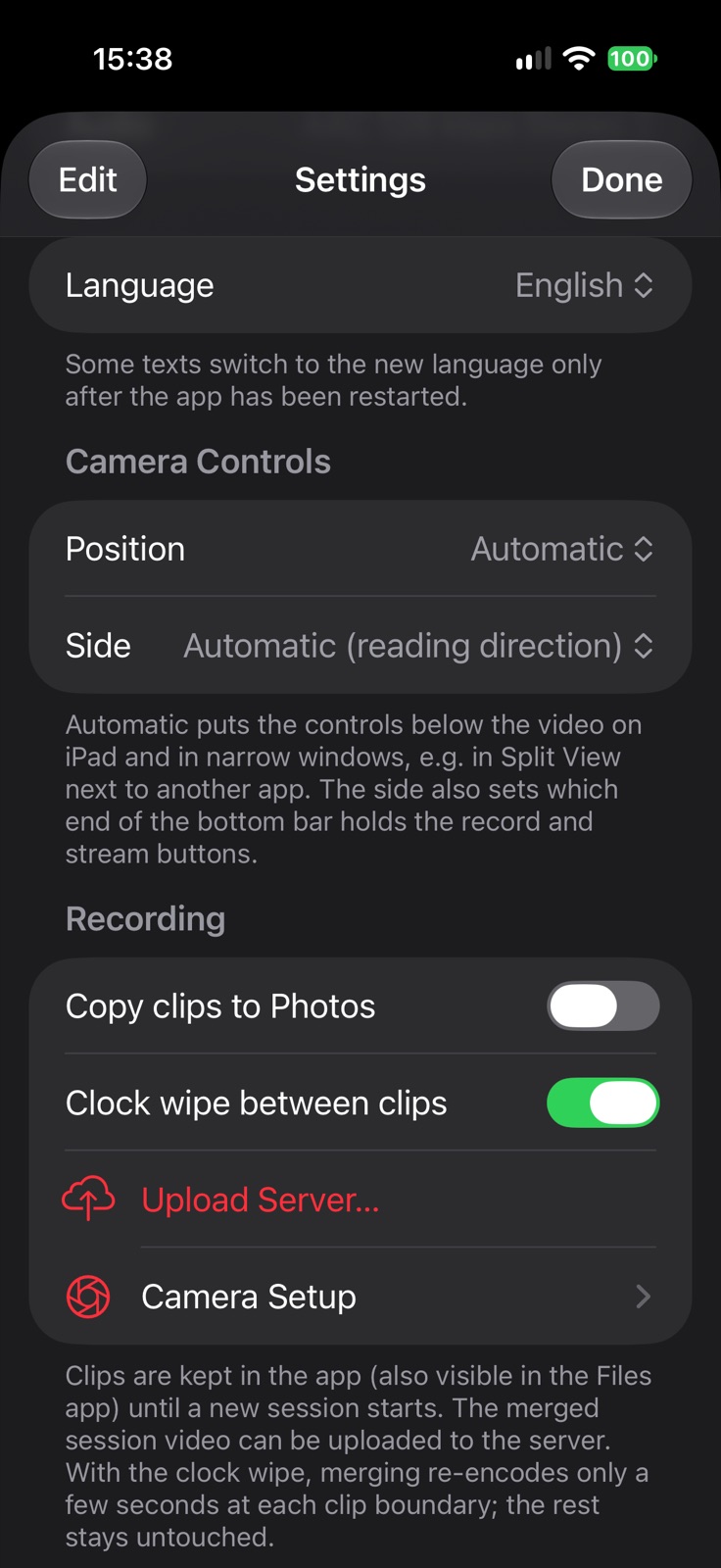
The app follows the language of the device. In the settings, under Language, you can choose another one; the app should then be restarted once.